Quality Controls
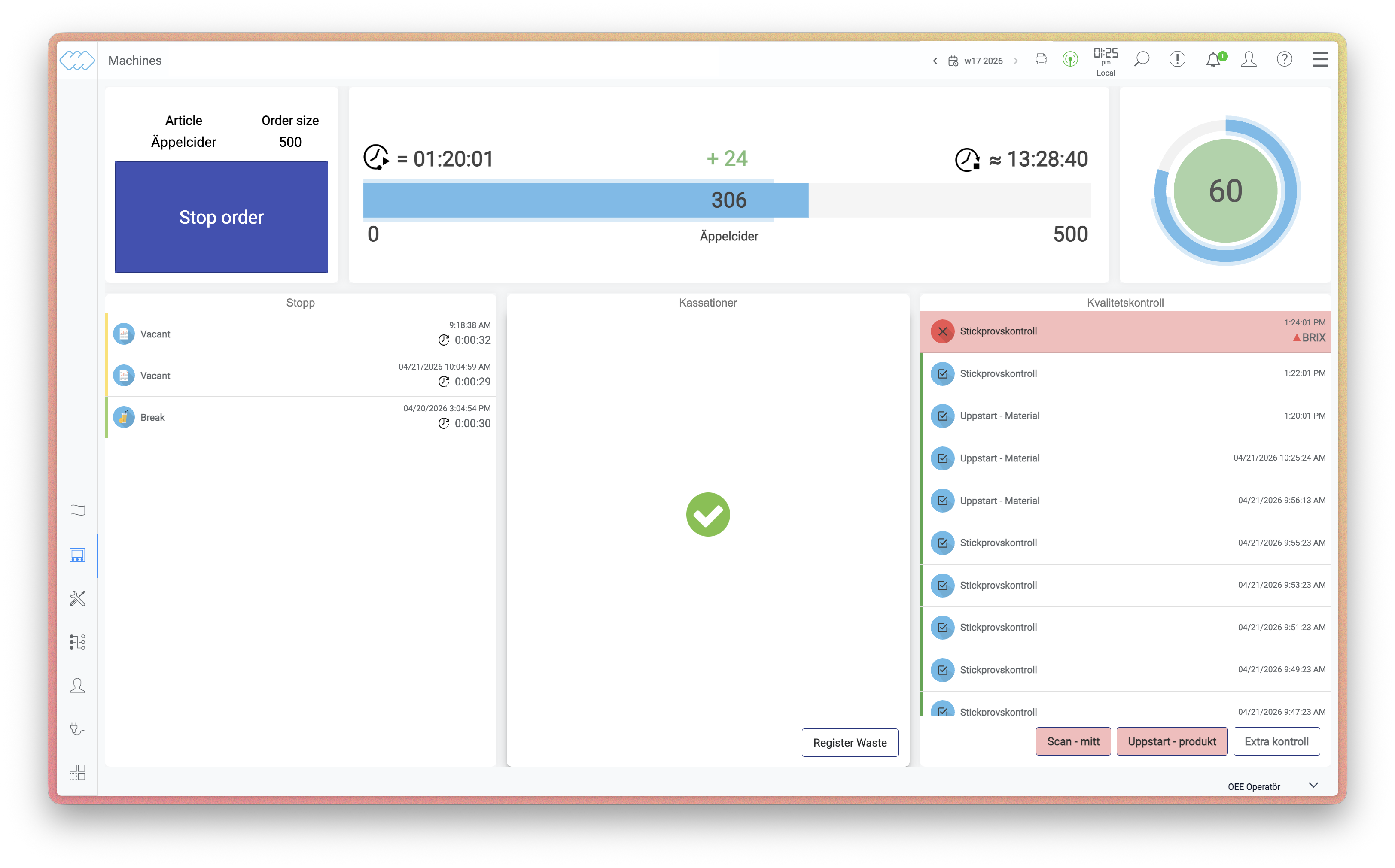
Quality controls are designed to be quick to carry out directly in production. When a
control is triggered, the Quality Control form is displayed where the operator fills
in the control points for the current product or article.
Control points
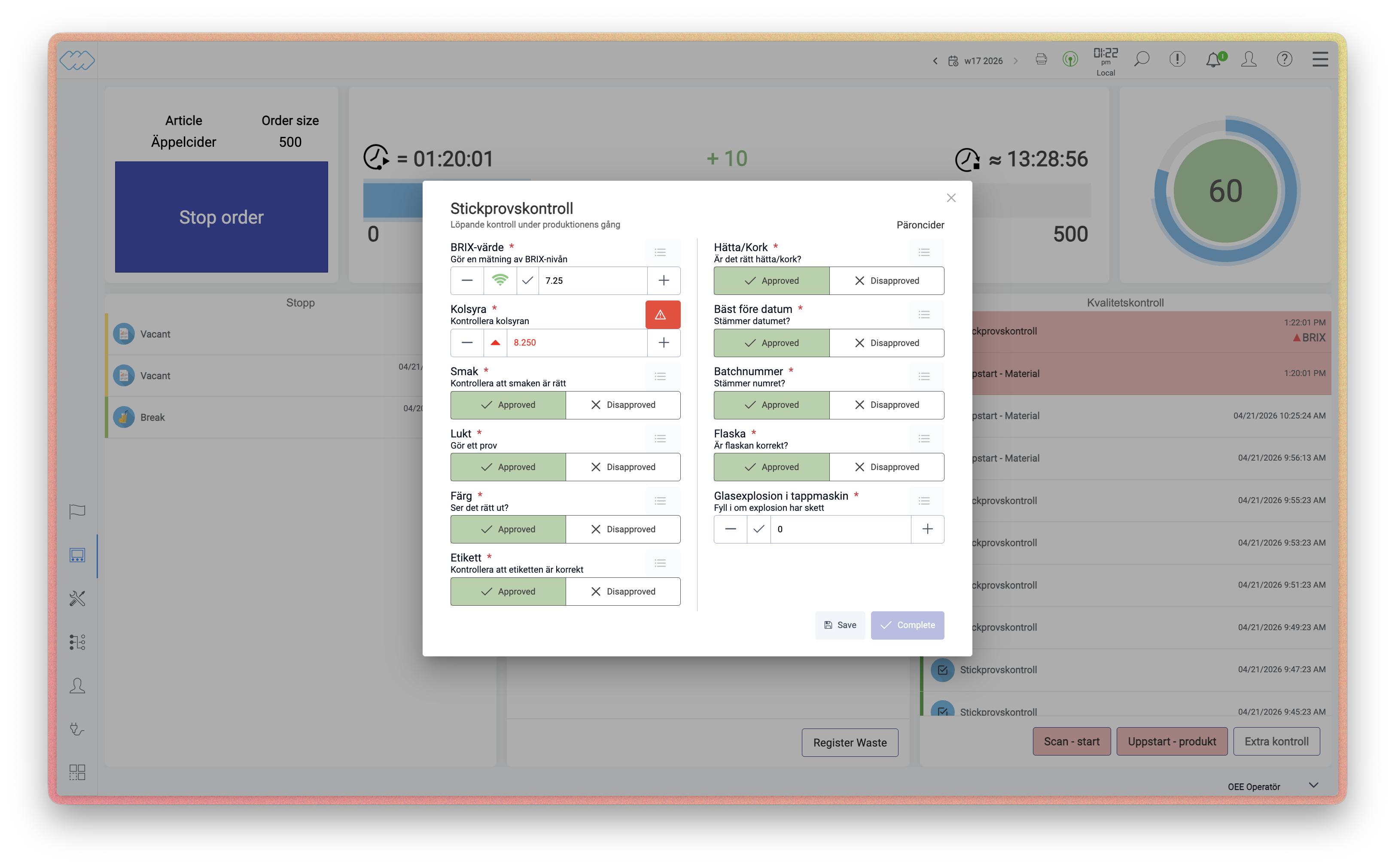
Each control point is clearly structured with simple inputs. For measured values, buttons are available to increase or decrease the value by a configurable step value set in settings.
Control points marked with a signal icon are inline readings – values read directly in the production flow without the operator having to perform a manual sample.
Deviations
When a deviation occurs, a warning icon is displayed to the right of the measured value:
- Yellow icon – the value is approaching the limit, as defined by the warning limits.
- Red icon – the value exceeds the limit.
The direction of the icon indicates which limit is affected:
- Upward-pointing triangle – the value is approaching or exceeding the upper limit.
- Downward-pointing triangle – the value is approaching or falling below the lower limit.
If a violation requires additional input, this is indicated by a red triangle in the upper
right corner of the field. Click the triangle to open a dialogue where additional
information can be entered, such as comments or the degree of deviation.
Complete a control
When all control points are filled in, the operator completes the control via Complete,
or saves it as a draft via Save. A completed control is locked and all information is
saved in the system.
When a control is completed, the result is presented in a summary that clearly shows which values have exceeded or fallen below the defined limits.