Quality Control Setup
Routines
The Routines tab is used to create and manage different types of quality checks in production. A routine defines when, where, and how a check should be performed. Examples include startup checks, end-of-process checks, weight checks, or packaging checks. Each routine is linked to a set of control points and can be applied to specific machines, lines, or production units. The purpose is to ensure a standardized and traceable quality process throughout production.
View Structure
In the routines view, all created routines are displayed in a table where each row represents a unique routine. The table provides a clear overview of how checks are configured and where they are applied.
When
This column defines when the routine should be triggered. The following options are available:
Never– The routine is not triggered automatically and is used manually when needed.Interval– The routine runs at a defined time interval, for example every hour.At Order Start– The routine is triggered at the start of an order.At Order End– The routine is triggered at the end of an order.At Shift Start– The routine is triggered at the beginning of a shift.At Shift End– The routine is triggered at the end of a shift.
This allows the routines to be adapted to the operational flow and specific needs of the production.
Actions
This column contains functions for managing and administering routines. From left to right, the following options are available:
Preview– Provides a simple preview of how the routine will appear to the operator. Mainly used to quickly verify structure and content before use.Edit group– Used to edit the basic information of the routine. Here, you can change the name, description, and define the frequency type. If an interval-based frequency is selected, a specific interval in minutes can also be set.Manage group– Opens a more advanced configuration view where the routine's control points are managed. Here, you can:- Add or remove control points
- Change the order using drag-and-drop
Placement– Define where the control point is displayed. Available options are Inplace, Under Parent, or On Complete.Required– Define whether it is mandatory and under what condition: When Disapproved, When Approved, or Always.Visible– Define visibility: Never, When Disapproved, When Approved, or Always.
Archive routine– Used to archive the routine. An archived routine is no longer active in production but remains in the system for history and traceability.
Control Points
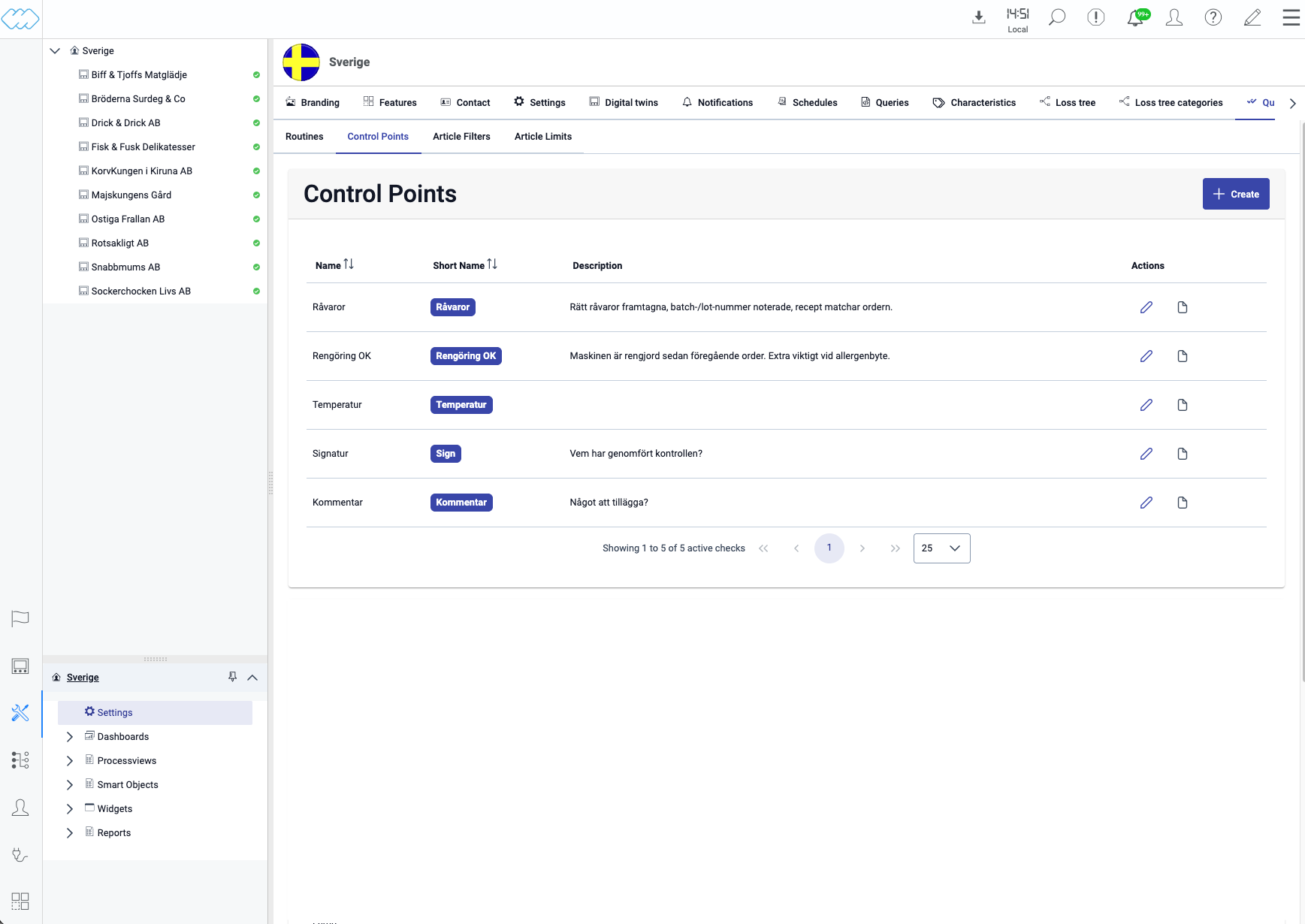
The Control Points tab displays all available control points. Each control point has a name, a short name displayed as a label in the operator view, and an optional description.
Click + Create to create a new control point. Existing control points are edited via the pen icon in the Actions column.
Types
There are four types of control points:
Text– Free text where the operator enters a value manually.Numeric value– A measured value with a configurable step value, start value, and limit values for warning, maximum, and minimum.Boolean– A yes/no selection.Multi option– A selection from a list of predefined options. Each option can be configured with a value, a color, an icon, and a status.
Create a New Routine
To create a new routine, click the Create button. Then enter the name, a description of the routine, when it should run, and optionally a frequency in minutes if an interval is used. Once this basic configuration is complete, the routine is saved and becomes available in the list.
The continued configuration is done via Manage Spot Checks, where the content of the routine is defined. Here, control points are added, the order is adjusted, and settings such as placement, required conditions, and visibility are configured. This step is crucial in determining how the routine will be used by the operator in production.
Use Cases
Routines are used to ensure quality across different stages of the production process. Startup checks verify that machines and settings are correctly configured before production begins. End-of-process checks ensure that production is completed correctly and that all necessary data is recorded.
In-process checks are used during production to continuously ensure quality and may include various types of checks depending on operational needs, such as weight checks, temperature checks, pressure measurements, visual inspections, dimensional checks, or sampling controls.
Routines can also be used to ensure correct handling of labeling, documentation, batch information, or other critical process steps. By structuring these checks into routines, a consistent and traceable quality process is achieved regardless of the type of production.
Article Filters
Overview
The Article Filters tab is used to control which control points are available for different articles. This makes it possible to tailor quality checks based on specific requirements per product or production scenario. By using article filters, only relevant control points are displayed and used, improving both usability and data quality.
View Structure
In this view, articles are presented in a table where each row represents an article. The columns represent available control points. Each cell in the table indicates whether a control point is enabled for a specific article. If a control point is selected, it will be used when routines are executed for that article.
Functionality
Users can enable or disable control points per article by selecting or deselecting them in the table. This creates a flexible mapping between articles and control points. A search field is available to quickly find specific articles. Filtering functions can be used to limit which control points are displayed, making it easier to manage larger configurations.
Use Cases
Article filters are used when different products require different types of quality checks. One article may require weight and labeling checks, while another may require temperature checks or visual inspection. By configuring article-specific filters, only relevant control points are presented to the operator, reducing complexity and minimizing the risk of incorrect or unnecessary data entry.
Article Limits
Overview
The Article Limits tab is used to define acceptable value ranges for control points per article. These limits ensure that measured or recorded values stay within acceptable levels and make it possible to detect deviations at an early stage.
View Structure
In this view, each row represents a combination of a control point and an article. For each combination, different limit values can be configured. The following columns are available:
Control Points– Displays which control point the limits apply to.Article– Specifies which article the limits are associated with.Low Limit– Defines the lowest acceptable value.Warning Low– Defines a lower warning threshold. Values below this may indicate a deviation but do not necessarily mean a failure.Warning High– Defines an upper warning threshold. Values above this may indicate a potential deviation.High Limit– Defines the highest acceptable value.Actions– Allows the user to manage the configuration:Edit– Modify the limit values.Copy limits– Copy existing limits.Paste limits– Paste copied limits.
Functionality
Users can define detailed limit values for each control point depending on the article. This enables precise control over what is considered acceptable, warning levels, and critical deviations. Search and filtering functions are available to quickly find and manage specific configurations.
Use Cases
Article limits are used to ensure that values remain within defined quality requirements. This may include measurements such as weight, temperature, pressure, or dimensions. Warning thresholds make it possible to identify potential issues at an early stage, allowing operators to take action before limits are exceeded. This helps reduce waste, minimize errors, and maintain a stable production process. By combining article limits with routines and control points, a complete and controlled quality assurance process is established.